
Shopify Google Shopping Feed: Set Up, Sync and Fix Issues

Start here
To set up a Shopify Google Shopping feed, connect the Google & YouTube channel to the correct Google Merchant Center account, choose your products and markets, then check the received records and their eligibility. Shopify’s official channel provides the connection; completing setup does not guarantee that every item will appear on Google. Shopify setup guide · Google’s free-listing guidance
- Check ownership: Confirm who controls the accounts, domain and existing connection.
- Prepare the catalog: Review identifiers, variants, descriptions and images.
- Verify delivery: Compare a sample of received items with your store.
- Monitor changes: Recheck errors after updates, rather than treating setup as a one-time task.
Connecting your Shopify store is only the beginning. You also need to know which products were sent, whether Google accepted them, and what happens when you change a price or sell out of a variant.
This Google Shopping guide walks through setup, product checks and troubleshooting, so you can maintain the connection after launch.
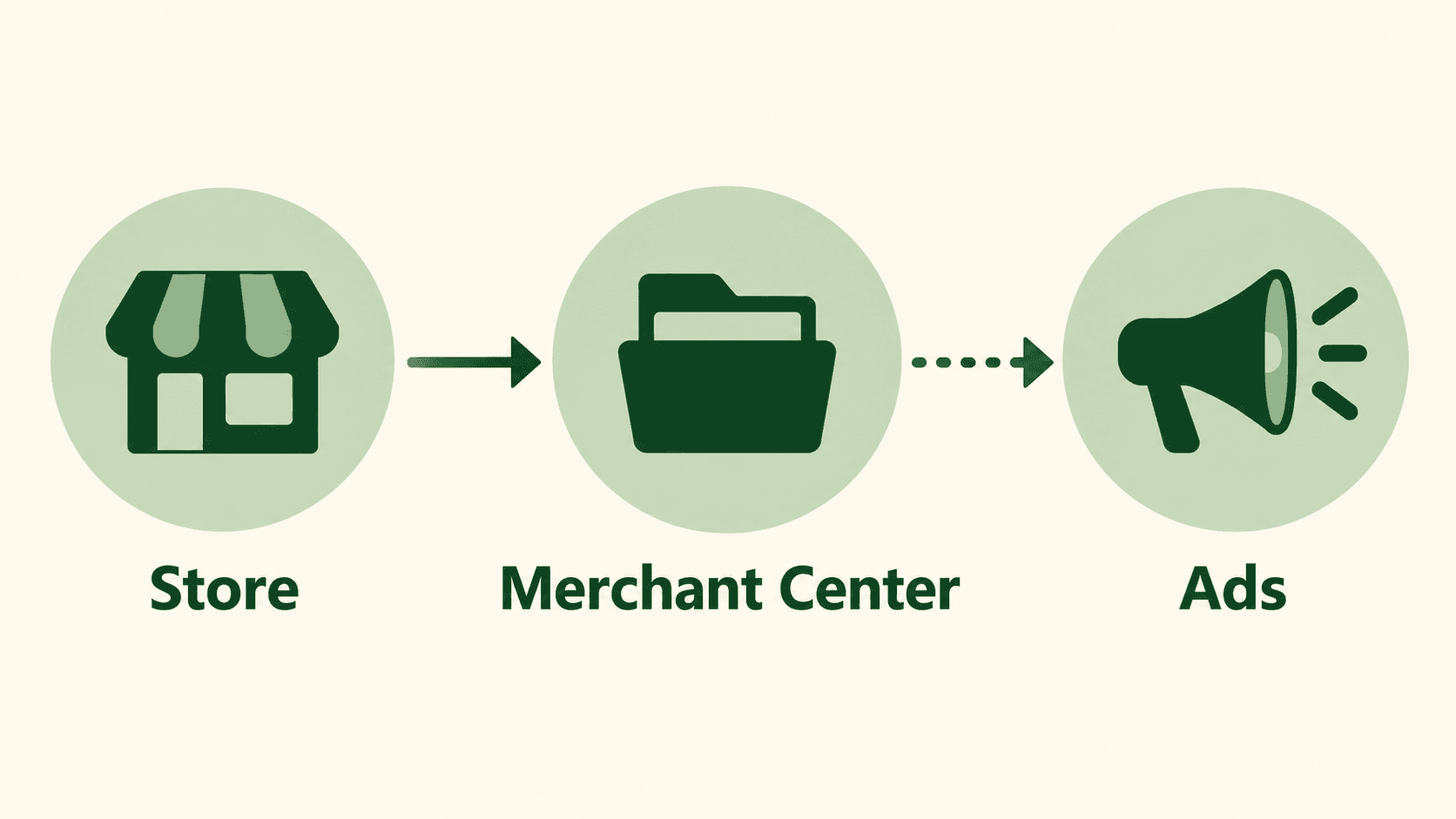
How Shopify, Google Merchant Center and Google Ads fit together
Think of the setup as three separate jobs:
| System | Main job | What to check |
|---|---|---|
| Shopify | Maintain the catalog and storefront | Is the offer accurate and purchasable? |
| Google Merchant Center | Receive and assess submitted items | Did the correct records arrive, and are they eligible? |
| Google Ads | Manage paid advertising | Are the intended products included in the campaign? |
The Google & YouTube channel connects these services. A Google Ads account is not required simply to sync products for free listings; advertising and analytics connections serve additional purposes. Shopify account connections
A product data feed can be a file that contains product information, but this integration handles the transfer for you. Your responsibility is to understand the source fields, settings and resulting product listing.
1.Prepare your Shopify store for Google Shopping
Start with the setup you already have. Record the account ID, connected email, domain owner, existing data sources and any active campaigns before changing anything.
Shopify requires an accessible online store, a valid payment provider, customer-visible contact information, and refund and terms policies. Country, currency and shipping requirements also apply. Use the channel’s checklist to identify what your particular store needs. Channel requirements
Already sending products to Google? Shopify warns that an existing feed can be overwritten when the channel syncs products. Document your current source, rules and campaign dependencies before switching. Existing-account considerations
This is a good point to involve whoever manages your advertising. Ask which item IDs, labels and product groups their campaigns depend on. Keep a record of the answers so you can compare the new setup rather than relying on memory.
2.Connect Shopify to Google Merchant Center
Install the Google & YouTube app from the Shopify App Store. In Shopify admin, open Sales channels → Google & YouTube, connect your Google account, and select the intended account or create a Google Merchant Center account during setup. The connected user needs the appropriate account access. Connection instructions
Check the account ID before continuing. A familiar business name is not enough if your team manages several accounts.
Your domain must be verified and claimed appropriately. Shopify also states that multi-client accounts cannot be connected directly through this channel. Resolve ownership or account-type problems before attempting repeated reconnections. Account requirements
For a new setup, keep a short connection note: who authorized access, which account was selected, and which market you intend to test first. This gives the next person maintaining the integration a useful starting point.
3.Choose how to sync products to Google
Check channel availability before diagnosing a feed error. Shopify says products available to the online store are synced automatically during initial setup, and their availability can be adjusted individually or in bulk. Review the selected catalog rather than assuming only your preferred items were included. Shopify product syncing
Start your verification with a small, varied sample:
- One simple item with a single variant.
- One item with several sizes or colors.
- One discounted item.
- One out-of-stock item.
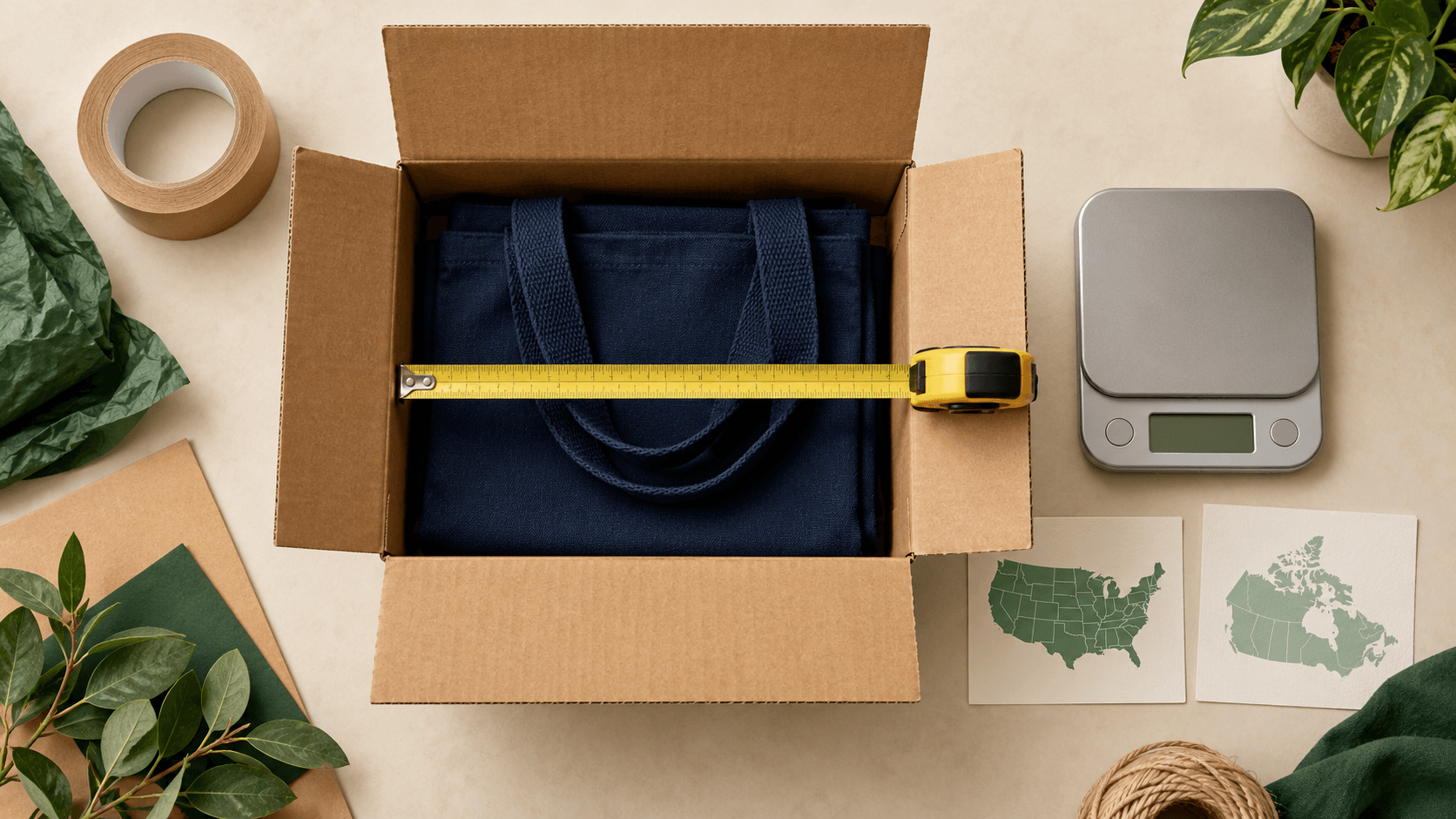
For each Shopify product synced to Google Merchant Center, compare the destination record with the selected variant, price, availability, image and product page. Include a checkout check where delivery or currency changes could affect the offer.
To sync your Shopify catalog reliably, decide who owns each update. Google’s integration guidance also describes automatic and manual product-sync options. Choose deliberately and record the setting; a manual workflow needs someone responsible for sending subsequent changes. Google’s sync guidance

4.Check your feed for Google Shopping
Check the received product information
Review missing identifiers and category-specific attributes before rewriting descriptions. Google’s Shopify guidance explains how to add required information and review the status of submitted products. Use the actual Google Merchant Center product issue to decide what needs correcting. Product requirements and statuses
For your internal check, keep a simple field map:
| Check | Question to answer |
|---|---|
| Identifier | Does it belong to this exact item or variant? |
| Google product category | Does the classification describe what is sold? |
| Product type | Is your own category path meaningful and consistent? |
| Variant details | Do size, color and image describe the same selection? |
Do not invent a barcode or manufacturer part number to clear a warning. Investigate the correct identifier treatment for the item instead.
Test the shipping cost a customer will see
Automatic shipping import has limits: Shopify says only rates from the General shipping profile can sync automatically. Custom profiles need particular attention rather than an assumption that every rate transferred correctly. Shipping requirements
Test representative destinations and baskets, including an order around your free-shipping threshold. Compare the displayed delivery charge with checkout and inspect the received settings inside Google Merchant Center.
If you use a manual configuration, name an owner for updates directly from Shopify or in the relevant destination settings. A setup can be correct today and become inaccurate after a delivery-policy change.
5.Improve product titles and descriptions with feed optimization
Make the offer easier to identify before adding more words. A useful product title distinguishes the item from similar products and its own variants.
Google allows up to 150 characters and recommends placing important details first. Titles must describe the linked product; promotional text does not belong in that field. Google title guidance
Here is a fictional example:
| Before | After |
|---|---|
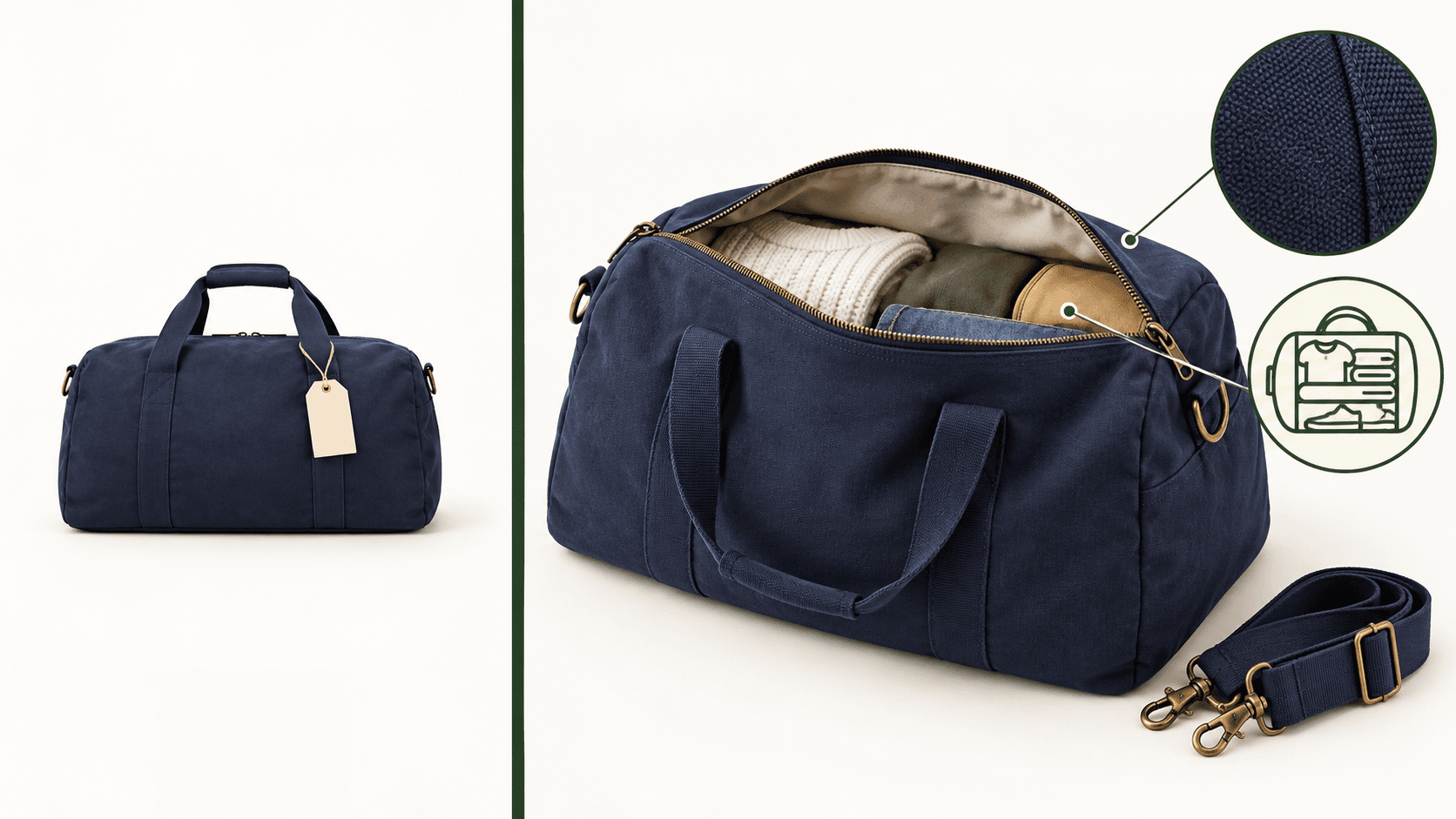
| Weekend Bag | Northline Canvas Weekend Bag – 35 L – Navy |
The revised version identifies the material, capacity and color. It illustrates clearer wording, not a measured improvement in sales.
Use product descriptions to explain verified details such as dimensions, included accessories and care instructions. Avoid repeating the name several times or inserting unrelated search phrases.
The Google & YouTube channel offers preferences for the titles and descriptions submitted to Google, including the option to use search-engine listing text. Check which source is selected before editing: changing the wrong field can leave the received record untouched. Title and description preferences
6.Choose free listings or Google Shopping campaigns
Eligible stores can show products for free on Google through listings across Google Search, the Google Shopping tab and other supported surfaces. Google says the Shopify integration opts products into free listings, but appearance is not guaranteed. Free listings for Shopify stores
Running Google Shopping ads is a separate decision. Google supports product promotion through Shopping campaigns and Performance Max campaigns using Merchant Center information. About Shopping ads
Before spending, confirm that the intended catalog is eligible, the selected campaign includes the right items, and conversion measurement is working. Linking Google Analytics 4 can support your measurement setup, but it does not replace checking the advertising conversion configuration. Shopify’s analytics and advertising connections
Keep catalog health and commercial performance in separate notes. “The items arrived” and “the campaign is profitable” are different conclusions requiring different evidence.
7.Get help with Google product sync issues
Follow one record from source to destination. Avoid disconnecting the whole integration as your first response to a problem affecting one item.
- Confirm that the product is available to the intended channels.
- Identify the relevant variant and destination record.
- Read the specific issue shown in the channel or Merchant Center.
- Correct the source field or setting responsible.
- Check the received value after the next update.
Shopify notes that later catalog changes can introduce errors even after successful syncing, so periodic checks remain necessary. Sync troubleshooting
Before contacting support, collect the account ID, affected item ID, exact message, last change and screenshots. This makes the investigation more useful than reporting only that “Google Shopping is broken.”

Your Shopify Google Shopping feed checklist
Before treating the connection as ready:
- Confirm the correct accounts and domain ownership.
- Record what happened to any previous connection.
- Check product and market selection.
- Compare a sample of received records with the storefront.
- Verify shipping costs and required details.
- Review eligibility separately from campaign performance.
- Assign someone to monitor errors after catalog changes.
Once those checks are reliable, optimize your product feed in small, measurable batches. When comparing shopping feeds, judge the received values and errors rather than assuming every connection handles them identically. A feed management tool is worth assessing against a specific unresolved task, such as reviewing transformations across larger product catalogs, rather than as a substitute for understanding the connection.
Explore a product feed review
Try an interactive example using sample data. feedrevive is in development; public access is not yet available. Google makes the final approval decision.
Try a sample review