
Google Merchant Center Optimization: Optimize Your Google Shopping Feed

Start here
To optimize Google Merchant Center, first correct inaccurate data and resolve eligibility issues. Then improve your listings, keep prices and stock synchronized, and measure the results.
- Fix blockers: Investigate disapprovals and missing attributes.
- Improve clarity: Make each item and its variants easy to identify.
- Maintain accuracy: Check that submitted values match your store.
- Measure outcomes: Separate technical fixes from changes in traffic and sales.
Uploading a catalog is only the beginning. The useful work starts when you understand which problems affect customers and how to prevent them from returning.
This optimization guide gives you a repeatable process, from the initial audit to ongoing product feed management.
Understand how Google Shopping and Merchant Center work together
Merchant Center holds the catalog you submit. Google Shopping provides shopping experiences where eligible items may appear, while Google Ads manages paid promotion.
For Google Shopping ads, Google uses the attributes in your catalog to match relevant searches. You manage this advertising through Shopping and Performance Max campaigns. Google’s advertising overview
Free product listings provide another route to visibility, including the Shopping tab and other supported surfaces. Keep their results separate from paid traffic when reviewing performance. Google’s unpaid listing guidance
There are three questions to answer:
- Eligibility: Can the item appear in the intended destination?
- Clarity: Does the listing accurately explain what the customer receives?
- Performance: Do the resulting visits lead to worthwhile sales?
A successful upload answers none of these completely. Inspect what was processed and follow the customer journey.

1.Audit your Merchant Center settings
Identify where your catalog originates, how it updates and who maintains it. Your source might be an ecommerce connector, a file or Google Sheets. When managing your Google Merchant Center account, assign someone to investigate failed updates and recurring warnings.
Inspect a small sample: a bestseller, a new item, a variant and a product with a reported issue.
| Area | What to check |
|---|---|
| Data source | Which system supplies each field and when it updates |
| Markets | Intended countries, languages and currencies |
| Shipping | Whether charges and delivery expectations match your store |
| Returns | Whether account settings reflect the published policy |
| Connections | Whether the correct Google Ads account is linked |
| Measurement | Whether you can distinguish paid and organic visits |
Record the date, affected IDs and current results before changing anything.
If you sell internationally, review each market separately. Do not assume that a configuration suitable for one country meets another country’s requirements. Google’s specification identifies requirements that depend on the product or destination. Submission requirements
2.Fix Merchant Center errors and product disapprovals
Start with problems that affect eligibility or accuracy. Group issues by cause rather than treating every record as an unrelated task.
If hundreds of items share a missing field, investigate the source mapping. Correcting the underlying process is more durable than repeatedly editing individual records.
Read the issue before choosing the fix
For Merchant Center disapprovals, establish:
- Which items and destinations are affected.
- What Google reports as the problem.
- Which system supplies the incorrect value.
- How you will verify the correction.
Treat account-wide notices separately. Merchant Center suspensions require attention to their stated causes; changing catalog wording is not a substitute for resolving those issues.
Check identifiers and variants
Verify GTINs against reliable manufacturer or supplier records. Never invent an identifier to fill an empty field.
Google advises using the correct identifier for the specific item or variant. Some products genuinely have no assigned GTIN. Google’s identifier guidance
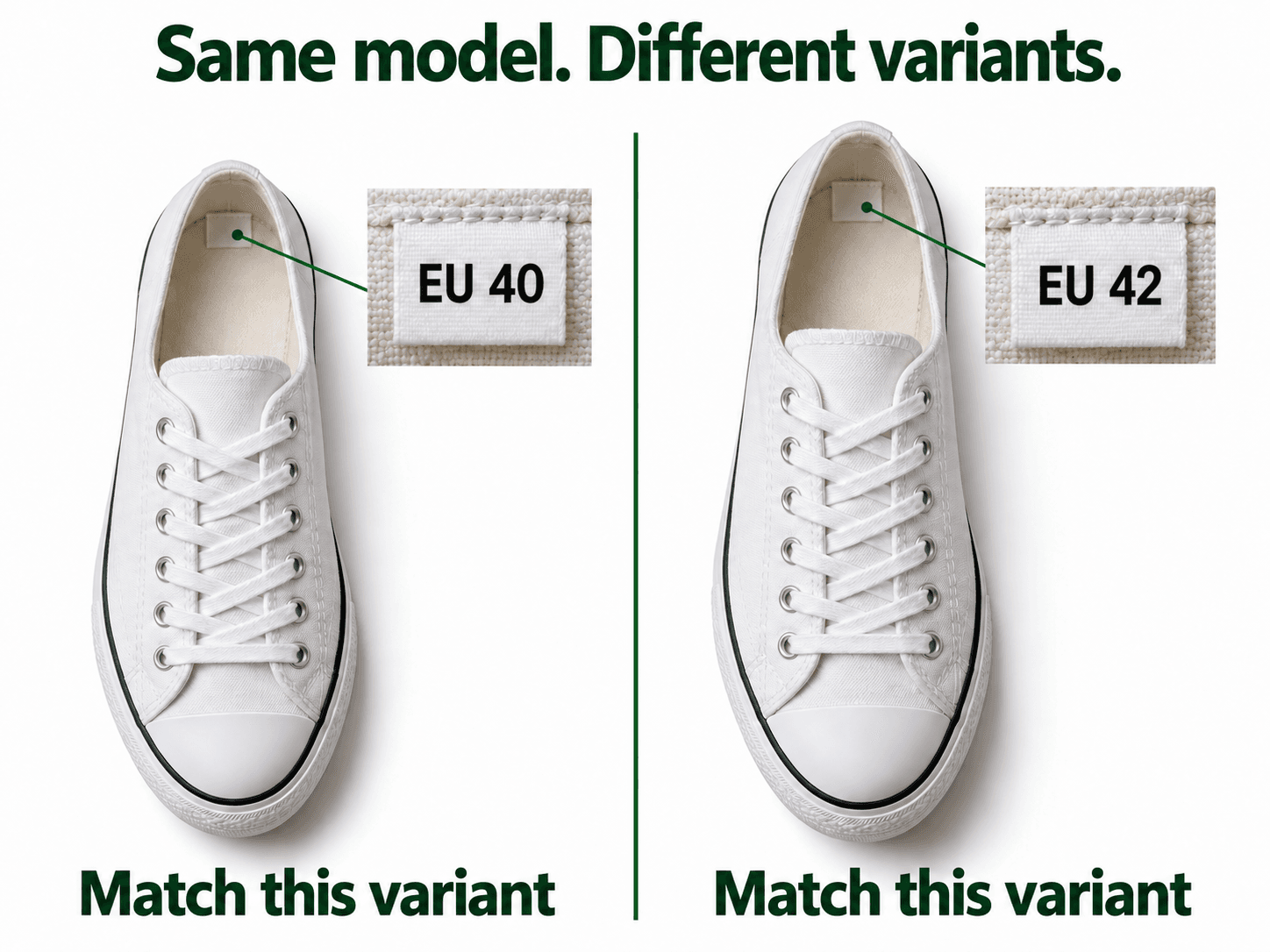
Compare size, color and variant grouping with the actual item being sold. After submitting a correction, inspect its processed value and product status.
Resolve price and availability mismatches
Compare the submitted record with the landing page a customer reaches. Check the selected variant, currency, price and stock status together.
Google can correct some temporary mismatches through automatic updates, but explicitly says these do not replace regular, accurate submissions. Automatic update guidance
If the same discrepancy returns, compare the Merchant Center feed with its source. Investigate synchronization timing or conflicting rules before making another manual correction.
3.Optimize your product title and product description
Once the main blockers are understood, improve the wording shoppers use to identify the offer.
Start with a manageable group containing obvious gaps: vague names, missing specifications or confusing variant labels.
Make names specific to the item and variant
A useful product title includes the details that distinguish the item. Depending on the category, these might include brand, model, material, size or color.
Google allows up to 150 characters and recommends accurate wording that describes the linked item and distinguishes variants. Avoid promotional text and unnecessary repetition. Naming requirements
Consider this fictional example:
| Before | After |
|---|---|
| Everyday Sneaker | Northline Everyday Sneaker – Men’s – White – Size 42 |
The revised version is more specific. It is an illustration, not a claim of measured performance improvement.
Answer practical buying questions
Explain materials, dimensions, capacity, features and contents where relevant.
Replace unsupported phrases such as “the best quality” with verified details. For example:
“White men’s sneaker with a canvas upper, lace-up fastening and rubber outsole. Available in EU size 42.”
Google’s description guidance calls for product-focused copy consistent with the website. Unrelated company history and promotional text do not belong in this field. Description requirements
Read customer reviews and support questions to identify unclear product details, then verify the answers against your specifications.
4.Improve product categories, product type and attributes
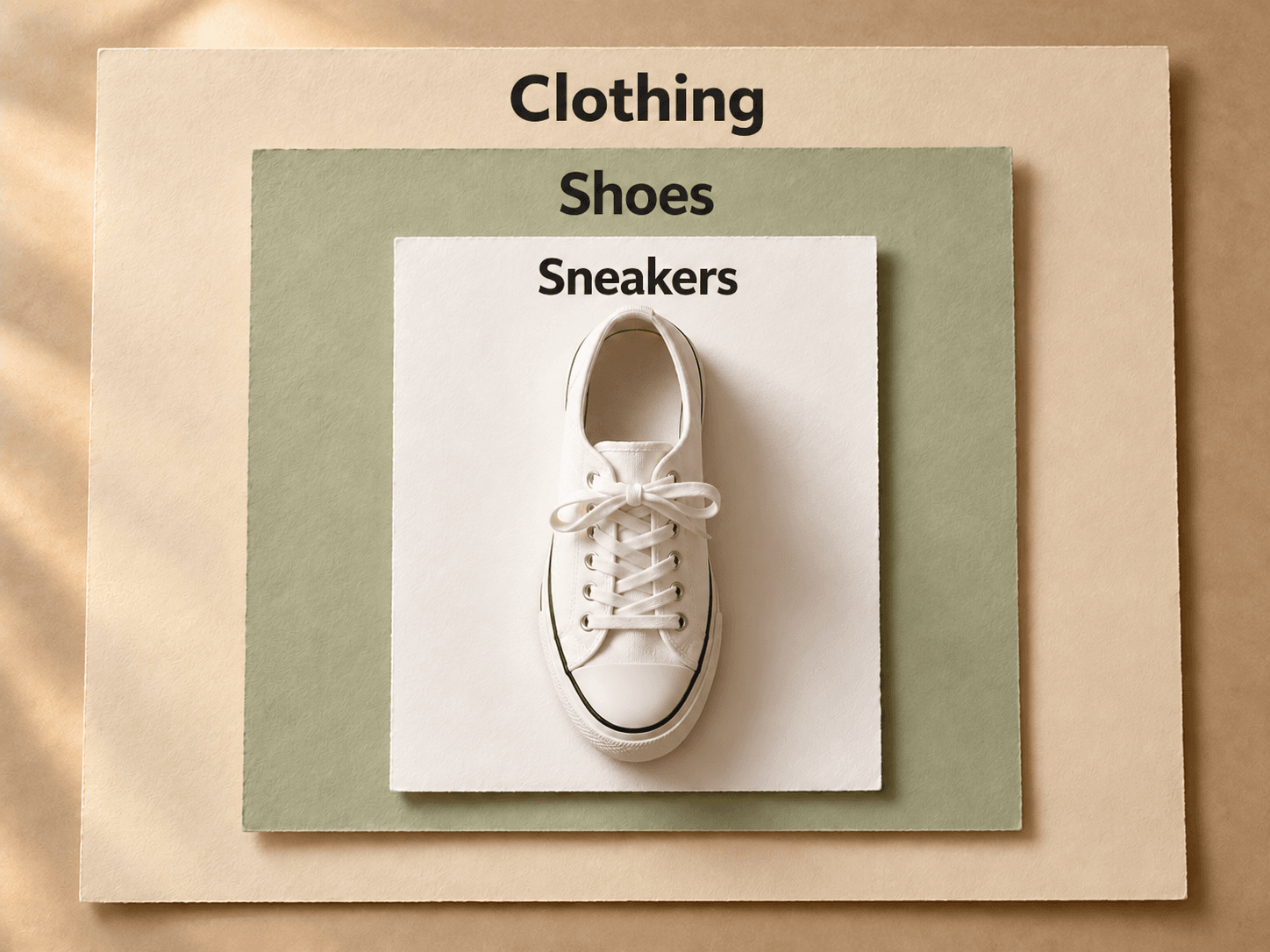
Google automatically categorizes items. Its category attribute uses a predefined taxonomy, while the product type field lets you submit your own classification. Overrides of automatic categorization are supported in specified situations. Classification guidance
Use a consistent internal hierarchy, such as:
Clothing → Shoes → Sneakers
Then review relevant structured attributes by category. A clothing checklist will differ from one for furniture or electronics.
Check whether additional product attributes appear only in prose when a dedicated field should also contain them. Apply the requirements relevant to your catalog rather than filling every available field. Attribute specification
Inspect representative records after changes, especially units and variant associations. Accurate feed data matters more than the number of fields you populate.
5.Check product image quality and the buying experience
Your main photograph should clearly show the correct item and variant.
Prioritize broken files, incorrect colors and misleading accessory arrangements before considering a complete reshoot.
Google generally prohibits promotional overlays, watermarks and placeholder graphics in the main visual. Its guidance also requires crawler access to the file. Image requirements
Next, open the listing as a customer would:
- Is the advertised option easy to identify?
- Are the price and stock status consistent?
- Are delivery and returns understandable?
- Can the purchase be completed without unexpected changes?
Reviewing the complete journey can reveal problems that are difficult to spot in a spreadsheet.
6.Use rules and supplemental data for feed optimization
Repeated manual corrections are a sign to examine how values are assembled.
Test attribute rules before applying them
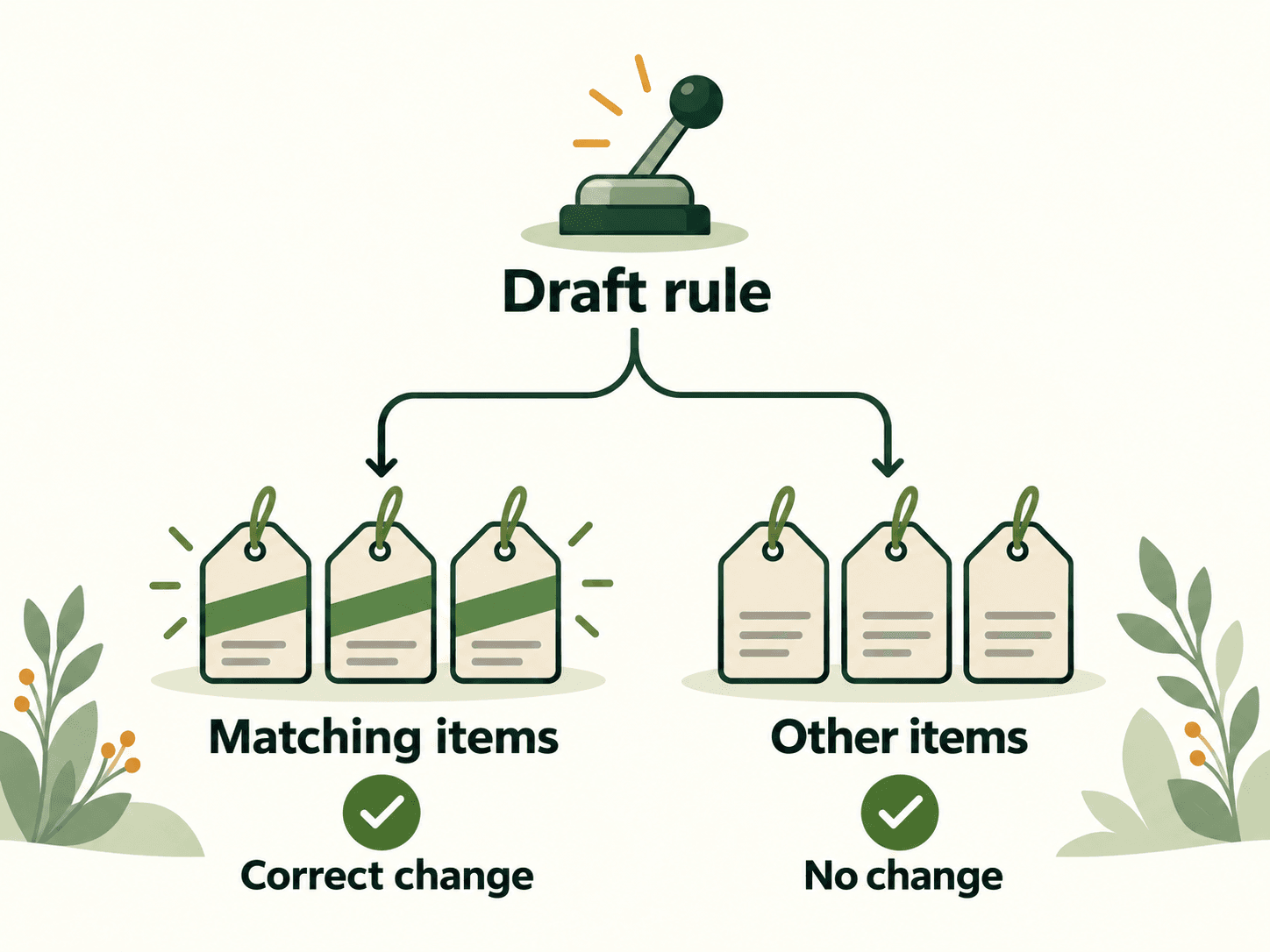
Attribute rules let you transform submitted values. Google provides a draft-and-test workflow before applying changes. Rules also run in sequence, so their order matters. Attribute rule guidance
For a proposed rule:
- State what it should change.
- Identify which records it should affect.
- Test examples that should match.
- Test examples that should remain unchanged.
- Inspect the processed results.
Avoid broad replacements whose effects are difficult to explain.
Supplement existing records
A supplemental source can add or update attributes missing from the primary source. It cannot function alone or add and remove products. Google documents this feature under the Advanced data source management add-on. Supplemental source guidance
Use it where a separate, maintained source is appropriate—not as an unexplained collection of permanent exceptions.
7.Organize a Google Shopping campaign with custom labels
Custom labels allow you to group items for reporting and bidding. Google supports five fields, numbered zero through four; their values are not shown to customers. Custom label guidance
Possible internal groupings for Google Ads campaigns include season, clearance status or margin band.
Define each field consistently. A label is useful only if the team understands how it is assigned and maintained.
8.Keep your product feed data accurate
Optimizing product feeds is an ongoing process because stock, pricing and assortments change.
Map the events that affect your catalog and check how each reaches the destination. Updating your product records is not complete until the correct values have been processed.
Match feed updates to stock and pricing changes
A stable catalog and a store with rapidly changing inventory have different needs.
Review synchronization after changing ecommerce platforms, warehouse systems or pricing workflows. Inspect the data in your feed after introducing new rules.
Automatic corrections should support this process, not conceal a persistent delay. Google’s update limitations
Check whether older integrations use the Merchant API
The Content API for Shopping reached its sunset on August 18, 2026. Google directs existing integrations to migrate to the Merchant API and describes progressive service degradation for clients without an active extension. Google’s migration notice
If a provider manages your connection, ask it to confirm the migration status.

9.Build a reliable Google Shopping feed management workflow
Before selecting a feed management tool, document the jobs you need it to perform:
- Connect to your current sources and destinations.
- Show where a value originates.
- Make transformations understandable.
- Support controlled testing.
- Make failures visible.
A small, stable catalog may not need the same setup as a large operation serving several markets. If you hire a feed management service, agree who maintains the rules and investigates failures. Compare third-party feed management against the actual workload and the time spent correcting recurring problems.
Use AI with verified facts
An AI tool can help draft product descriptions in bulk, but every claim still needs checking.
Review materials, dimensions, compatibility and performance statements. Do not let generated text fill gaps with plausible guesses.
Google requires appropriate structured fields and source labeling for AI-generated titles and descriptions. Confirm that your connector supports those requirements. Structured title guidance, Structured description guidance
10.Optimize Google Shopping performance with measured changes
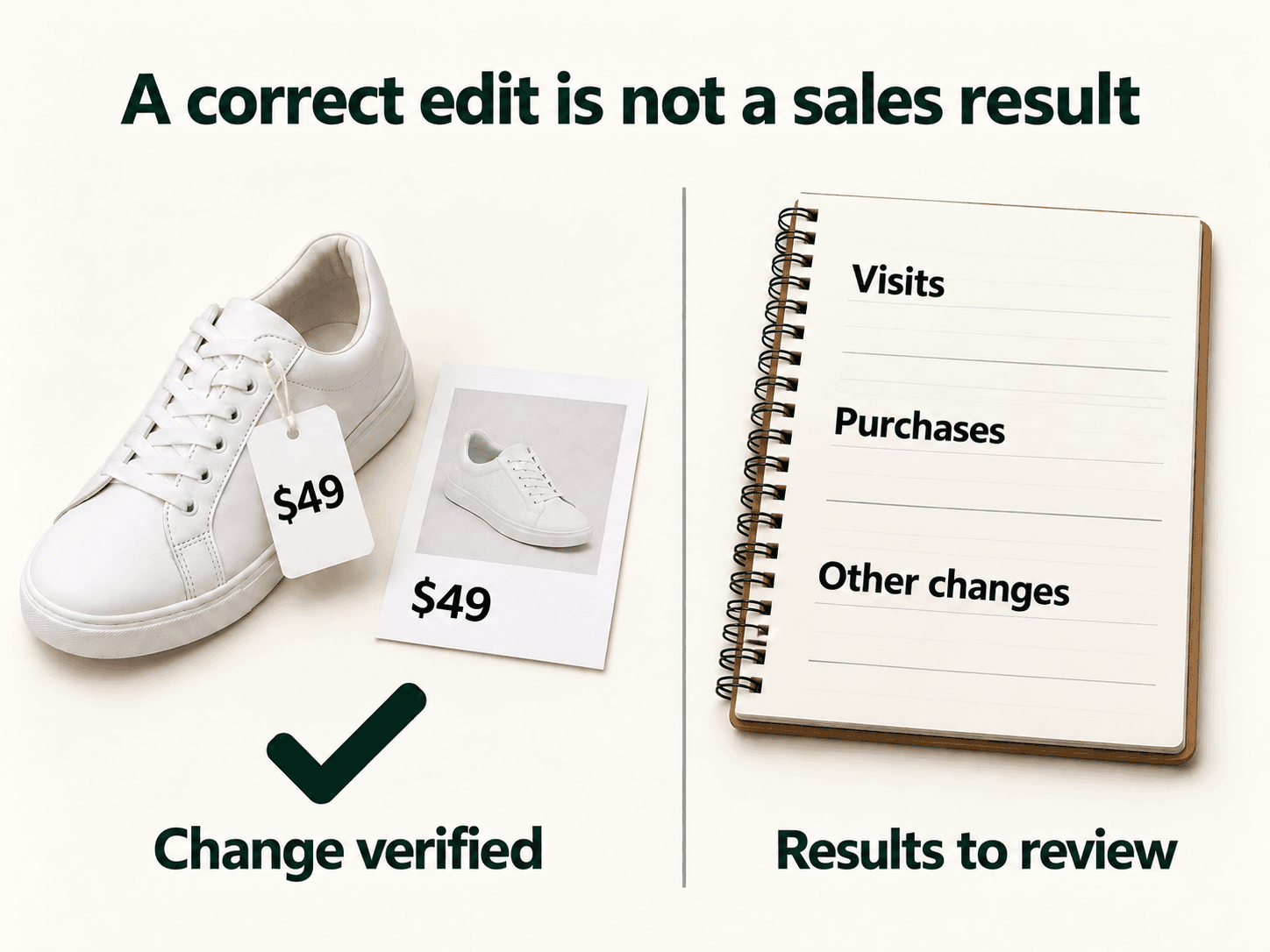
Decide what success would look like before making an edit. Track product performance for the same group before and after the change.
An eligibility correction needs a status check. A wording change needs a review of customer response.
To assess shopping campaign performance, inspect the affected group rather than relying only on account-wide totals. Confirm that intended items are included in active product groups. Campaign inclusion guidance
Separate Google Ads clicks from commercial outcomes
Use Merchant Center reporting for visibility and visits, and Google Ads for deeper paid analysis. If you use Google Analytics, verify that paid and organic traffic are distinguished correctly. Tracking guidance
Track:
| Change | First check | Follow-up |
|---|---|---|
| Corrected availability | Submitted value matches the store | Does the discrepancy return? |
| Rewrote copy | Correct text was processed | Did engagement and purchases change? |
| Replaced photography | Correct visual appears | How did customers respond? |
| Changed synchronization | Updates arrive as intended | Are recurring issues reduced? |
Record promotions, stock shortages and campaign changes alongside these results. A before-and-after comparison does not prove that one edit caused the difference.
Frequently asked questions
How often should I review my catalog?
Match operational checks to how frequently your business changes. Recheck after promotions, major stock changes and integration updates. Schedule broader reviews around the workload your team can maintain.
Can the same work support paid and unpaid placements?
Yes. Accurate product data supports both ads and free listings. Review their results separately because they represent different sources of traffic. Google’s specification
Why are approved Google Shopping products receiving few impressions?
Approval is one part of the investigation. Check the affected destination, campaign inclusion and reporting period. Then examine whether the offer is competitive and clearly presented in shopping results.
Your product feed optimization checklist
Choose a few important items with obvious gaps. Keep one reliable source of product information, record each change and confirm it reaches Google before expanding the work.
Work through one group at a time:
- Audit sources, owners, markets and tracking.
- Investigate eligibility blockers.
- Verify prices, stock, identifiers and variants.
- Improve unclear wording.
- Review classification and relevant attributes.
- Inspect photography and the buying experience.
- Test rules and synchronization.
- Record results before expanding changes.
Use the results to refine your feed. Keep changes that solve the intended problem, investigate unexpected outcomes and document what you learned.
Optimize Google Merchant Center product data in small batches
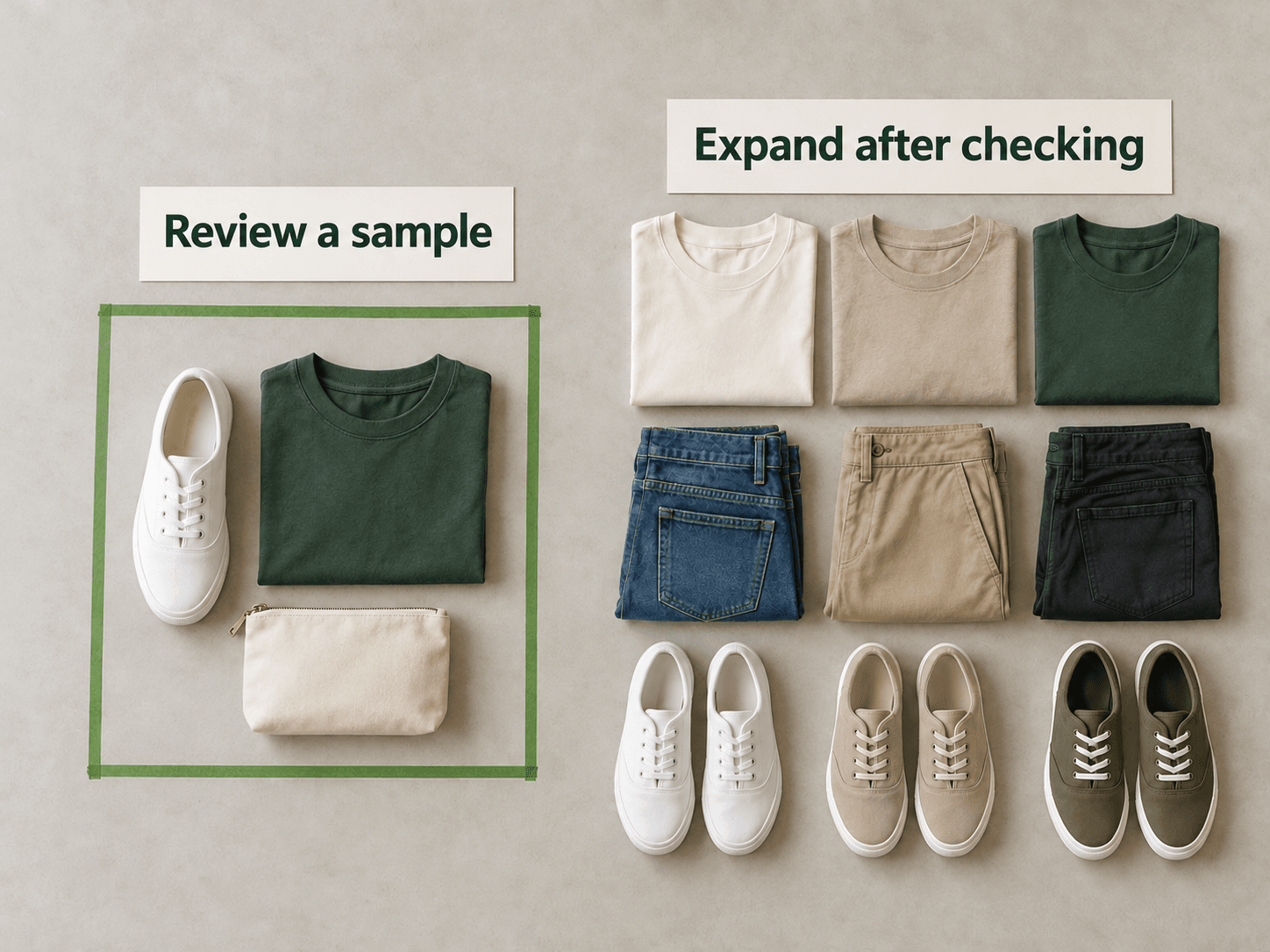
Start with one category and one specific problem. For example, compare a sample of your Google product feed with the store, correct an attribute mapping, and check that unaffected items remain unchanged. Expand the change only after reviewing the processed records.
Explore a product feed review
Try an interactive example using sample data. feedrevive is in development; public access is not yet available. Google makes the final approval decision.
Try a sample review