
How to fix disapproved products in Google Merchant Center
When products are disapproved, start with the reason shown in Google Merchant Center. A price mismatch, invalid image link or policy violation needs a different fix. This guide helps you identify the cause, correct it and check the result.

Start here
Open Products → Needs attention in Google Merchant Center. Identify the affected products and country, fix the underlying issue, then follow the recheck or review instructions shown.
- Check whether the problem affects individual products or the account.
- Correct the source data and website together.
- Confirm Google has processed the changes before judging the result.
1.Find disapproved products in Merchant Center
In Needs attention, open the issue and inspect an affected product. Record its ID, the reported problem and where it cannot show. Warnings may limit performance; disapprovals block the affected listing. A product may have different eligibility for Shopping ads and free listings, so check the affected marketing method and country.
Also open View setup and policy issues. A product-level issue affects an individual offer; an account-level suspension requires a broader review of your Google Merchant Center account. If prioritized fixes are enabled, turn them off when you need to see the full issue list. Google's guide to Merchant Center issues explains these views.
For a large catalog, group errors before editing products one by one. Check one product for a shared feed mapping or website-template error, fix the cause, then spot-check other affected items.
2.Fix product feed errors: price, availability and identifiers
Price and availability mismatches
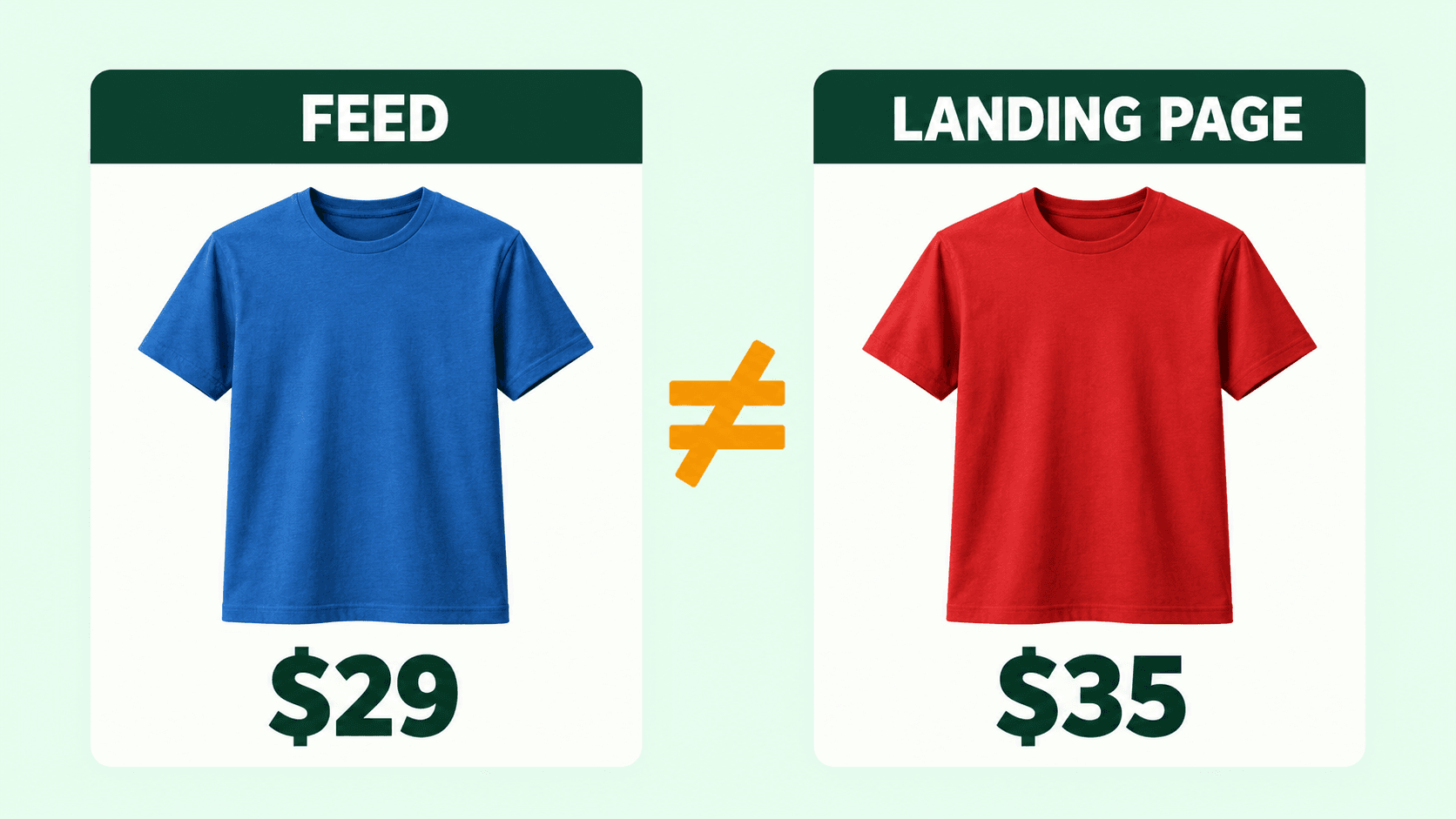
Compare the submitted offer with the exact product variant on your website. Check price, currency, stock status and structured data, then continue to checkout.
Check sale dates and inventory sync timing, too. Fix the store or feed system that supplies the values so the next upload preserves the correction. Google's price mismatch guidance and availability requirements describe the consistency checks.
| Feed offer | Landing page |
|---|---|
| Blue shirt, $29 | Wrong: red shirt, $35 |
| Blue shirt, $29 | Correct: blue shirt, $29 |
Shipping details and missing attributes
Test shipping for an address in the affected country. Compare the checkout charge with Merchant Center's shipping settings, including product-level overrides. Use Google's shipping troubleshooter for the exact error.
For missing attributes, follow the issue’s linked requirements. Supply the actual size, color or product category; never guess a value to clear a warning.
Invalid GTINs and brand errors
Look up identifiers on the packaging or ask the manufacturer. Use the identifier for that exact product and variant, and submit the actual brand rather than your store name when you resell another manufacturer’s goods. Never invent a GTIN. Google's identifier guidance explains where to find it.
Only set identifier_exists to no when the product genuinely lacks the identifiers covered by Google's identifier-exists rules. A missing value in your spreadsheet does not mean no identifier exists.
3.Fix image links, promotional overlays and crawl errors
Use a clear photo of the actual item. Remove any promotional overlay, added retailer watermark or sales message. A logo physically printed on the product is different from one added over the photo. Check that the image_link URL loads the image and permits Google's crawlers. Follow the current image requirements for dimensions and file formats.
Google recommends images of 1500 × 1500 pixels or larger and has announced a minimum of 500 × 500 pixels for all products from January 31, 2027. For an image-too-small error, replace the low-resolution file with a larger original.
Open the submitted product URL on mobile and desktop. Fix broken pages, server errors and redirects that prevent shoppers or Google from reaching the offer. A page loading for you does not prove Google can crawl it; check access restrictions and server logs if the error persists. Google's product-page troubleshooting guide lists the relevant failures.
4.Resolve misrepresentation and account suspension
For a misrepresentation issue, audit your business information, product claims, contact details, delivery terms and return policy for accuracy and transparency. Read the misrepresentation policy alongside your account notice.
If Merchant Center flags website verification, claiming or identity checks, complete those specific setup requirements. Correcting product titles alone will not resolve them.
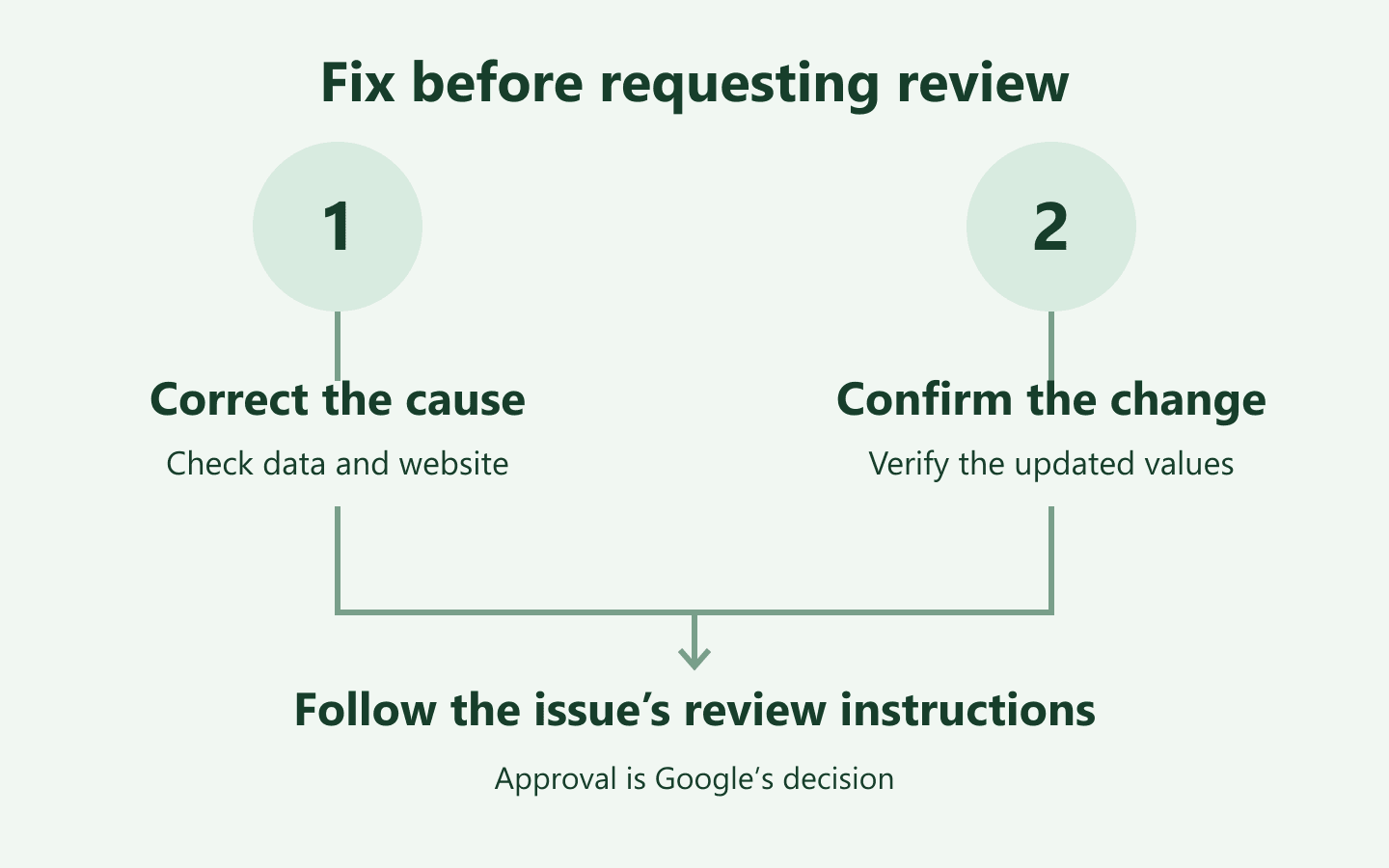
Fix first, request review second. Repeated unsuccessful reviews can lead to a cooldown. Use the issue's instructions to check what Google needs before submitting again.
5.Resubmit your feed and request a review when needed
Sync or upload the corrected product data, then confirm the new values appear in Merchant Center. Some data issues are reassessed after processing or crawling. Others offer a review or website-check button.
For applicable issues, choose I fixed the issue after correcting the problem, or I disagree with the issue if you can support an appeal. Follow the prompts to request a review or website check.
If the button is unavailable, check for outstanding verification requirements or a cooldown notice.
Google's general review guidance says reviews can take up to seven working days. This is not a guaranteed recovery time for every disapproval. Check the review status and any issue-specific instructions.
Approval makes the product eligible; it does not guarantee impressions. If approved products still do not appear in Google Shopping ads, check your Google Ads campaign settings. Bidding changes cannot fix a Merchant Center policy violation.
Prevent recurring disapprovals
- Recheck affected products in the original country and marketing method.
- Confirm the corrected values survived another feed sync; check that scheduled feed updates completed successfully.
- Record the cause and fix so the team can recognize a recurrence.
- Monitor the next sale, inventory update or website release for the same error.
Sources
Use Google’s official documentation for your exact error. Start with Issues in Merchant Center and Request a review of your issues.
Explore a product feed review
Try an interactive example using sample data. feedrevive is in development; public access is not yet available. Google makes the final approval decision.
Try a sample review